Showing posts with label android. Show all posts

Getting video stream from Android’s display

Getting video stream from Android’s display


This is something that has been tried to be achieved in various ways. What other people usually do is to take screenshots at regular intervals and stitch them together to make a video out of it. What I’m doing here is pretty different an much better than that approach.
And so I also present a way to capture video frames from Android’s default display and do further processing as one pleases.
I’ll broadly use two main APIs viz. MediaCodec (added in API level 16) and DisplayManager (added in API level 19). So this will limit our app to a minimum API level of 19 which is Kitkat. And further if you want to mirror the output of secure windows as well, then you’ll have to push your apk to /system/priv-app/ which will require having root access on your phone.
My logic is :
  • Create a video encoder.
  • Get an input `Surface` from the encoder using `createInputSurface()` method of the encoder object.
  • Pass this surface to DisplayManager so that the display manager will route it’s output to this surface.
  • Use the dequeOutputBuffer() method which will return you the H.264 encoded frames of your video.
  • And if you want to get raw video frames you can further pass these AVC encoded frames to a video decoder and get the raw frames. However as of now I’m not covering that in this blog post.
Let’s start with the code :
First we need to create an encoder, configure it and get an input surface out of it.


MediaFormat mMediaFormat = MediaFormat.createVideoFormat("video/avc", 1280, 720);
//For a Nexus 5, the max bit-rate is 4 Mbps
mMediaFormat.setInteger(MediaFormat.KEY_BIT_RATE, 3000000);
//For a Nexus 5, the range of frame-rate is from 15 to 30
mMediaFormat.setInteger(MediaFormat.KEY_FRAME_RATE, 15);
mMediaFormat.setInteger(MediaFormat.KEY_COLOR_FORMAT, 
    MediaCodecInfo.CodecCapabilities.COLOR_FormatSurface);
mMediaFormat.setInteger(MediaFormat.KEY_I_FRAME_INTERVAL, 10);
Log.i(TAG, "Starting encoder");
encoder = MediaCodec.createByCodecName(CodecUtils.selectCodec(CodecUtils.MIME_TYPE).getName());
encoder.configure(mMediaFormat, null, null, MediaCodec.CONFIGURE_FLAG_ENCODE);
Surface surface = encoder.createInputSurface();

encoder.start();
We will then pass the above created surface to createVirtualDisplay() method.
DisplayManager mDisplayManager = (DisplayManager) mContext.getSystemService(Context.DISPLAY_SERVICE);
mDisplayManager.createVirtualDisplay("OpenCV Virtual Display", 960, 1280, 150, surface,
                DisplayManager.VIRTUAL_DISPLAY_FLAG_PUBLIC | DisplayManager.VIRTUAL_DISPLAY_FLAG_SECURE);
The DisplayManager will keep drawing the contents of the Android screen on our virtual display which in turn will feed the contents to video encoder through the surface.

final int TIMEOUT_USEC = 10000;
ByteBuffer[] encoderOutputBuffers = encoder.getOutputBuffers();
MediaCodec.BufferInfo info = new MediaCodec.BufferInfo();
while (!encoderDone) {
    int encoderStatus = encoder.dequeueOutputBuffer(info, TIMEOUT_USEC);
    if (encoderStatus == MediaCodec.INFO_TRY_AGAIN_LATER) {
        // no output available yet
        if (VERBOSE) Log.d(TAG, "no output from encoder available");
    } else if (encoderStatus == MediaCodec.INFO_OUTPUT_BUFFERS_CHANGED) {
        // not expected for an encoder
        encoderOutputBuffers = encoder.getOutputBuffers();
        if (VERBOSE) Log.d(TAG, "encoder output buffers changed");
    } else if (encoderStatus == MediaCodec.INFO_OUTPUT_FORMAT_CHANGED) {
        // not expected for an encoder
        MediaFormat newFormat = encoder.getOutputFormat();
        if (VERBOSE) Log.d(TAG, "encoder output format changed: " + newFormat);
    } else {
        ByteBuffer encodedData = encoderOutputBuffers[encoderStatus];
        if (encodedData == null) {
            //something's wrong with the encoder
            break;
        }
        // It's usually necessary to adjust the ByteBuffer values to match BufferInfo.
        encodedData.position(info.offset);
        encodedData.limit(info.offset + info.size);
        
        encoder.releaseOutputBuffer(encoderStatus, false);
    }
}
The variable `encodedData` contains the AVC encoded frame and will be updated in every loop.
Now it’s upto you what you want to do with this. You can write it to a file. You can stream it over the network (Though that will require a lot of other effort too).

Android Latest Version 5.0 Ladoo ,Lollipop ,Licorice, Lemonhead or L.. ?


Android Latest Version 5.0 Ladoo , Lollipop , Licorice , Lemonhead or L.. ?


Different Versions of android - 

  • Alpha "Apple Pie" (1.0)
  • Beta "Petit Four" (1.1)
  • Cupcake (1.5)
  • Doughnut (1.6)
  • Eclair (2.0–2.1)
  • Froyo (2.2–2.2.3)
  • Gingerbread (2.3–2.3.7)
  • Honeycomb (3.0–3.2.6)
  • Ice Cream Sandwich (4.0–4.0.4)
  • Jelly Bean (4.1–4.3.1)
  • KitKat (4.4–4.4.4)
  • Ladoo ,Lollipop ,Licorice, Lemonhead or L.. ?


In what is a change to its usual manner of handling new Android releases, Google has announced a developer preview of the upcoming Android L release. Previous the search giant would unveil a new version of its platform at the I/O event, making it available for download almost immediately.


Now, we've got a developer preview that will only serve for developers to play with and optimize their apps with the actual public release coming later on.
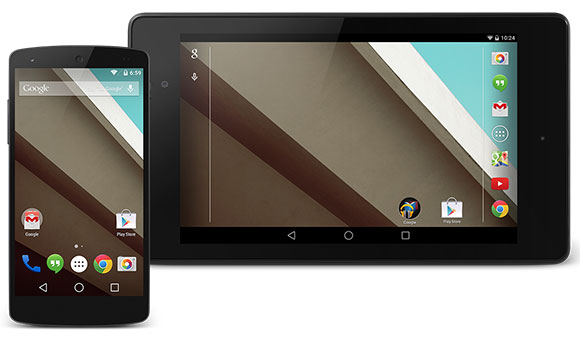
The Android L (final name and version number yet to be confirmed) brings various changes to the UI, with refreshed status bar, dialer and just about every other system apps. Google has also redesigned the transition animations so they look cooler and more natural.
The notifications have been enhanced and are now available on the lockscreen. You can either tap a notification from there and be taken to the app responsible for it, or you can swipe it right off.
The Chrome browser, which has been the default Android browser for some time now has been upgraded as well. It offers a new fluid design with the different parts of its UI changing size to give you easier access to the most relevant options. Its performance has also been tweaked and the GUI rendering has been fixed at 60fps making scrolling around appear extra smooth.
   
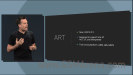
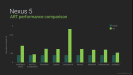
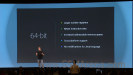
The new runtime environment in the L release is ART, launched as an alternative to Dalvik in KitKat. ART allows apps to run faster and is compatible with ARM, x86 and MIPS architectures. In addition to performance gains, it also provides better memory benefits and is supports 64-bit.
   
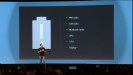
Performance isn't the only thing Google wants to improve with the L Release. The battery performance is also important and to make it better, Google introduced Project Volta.
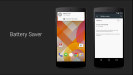
There's a new Battery Saver mode, which can tune down the CPU, turn off the phone's radio and as a result extend its power autonomy. On the Nexus 5, for example, this should earns you 90 minutes additional usage time.
   
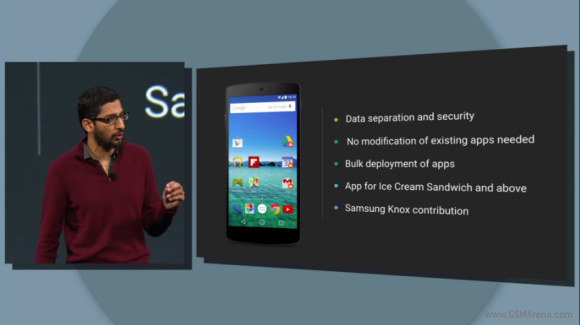
Another major change Google introduced is a separation between personal and work data. No modification to existing apps is needed, Android will keep the data separate and secure. Company IT admins will be able to bulk deploy apps to employees.
Samsung contributed a lot of what it developed with KNOX but the feature will work on devices by any manufacturer. Best of all you don't need Android L, this feature will be brought to any Android 4.0 Ice Cream Sandwich and above.


Android L also unifies the fitness tracker experience into one app, Google Fit (hi, Apple HealthKit). It will pull data from sensors in your phone, your smartwatch and other wearables. Nike Fuelband is one, but Adidas, Motorola, LG, Bais, Polar, RunKeeper, HTC and even Intel will be bringing supported devices.
Google Fit will track steps, your sleep and other health metrics. Apps will be able to request access to this data, but it's up to the user to allow it.


The factory images for the Android L release on the Nexus 5 and Nexus 7 will be released tomorrow for developers to play with them. Over the air updates for end-users will arrive in the Fall.

Credits - GSMArema